Pages
Pages are static content entries for your site -- think "About", "Contact", "Services", or custom landing pages. Unlike blog posts, pages are not date-ordered and do not appear in RSS feeds.
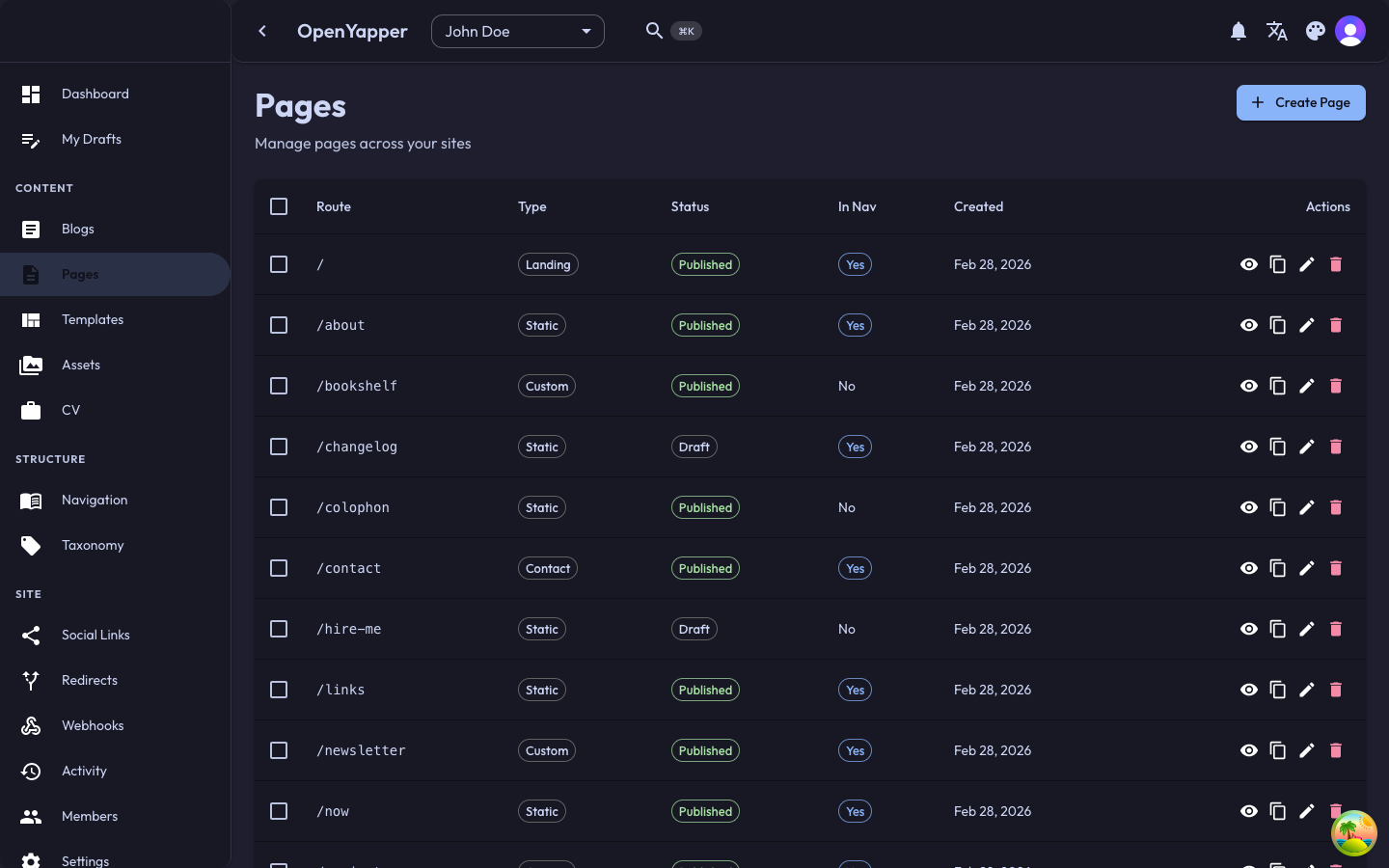
Page Listing
Navigate to Pages in the sidebar. The listing shows all pages for the currently selected site.
List View Columns
| Column | Description |
|---|---|
| Title | The page title in the current locale. |
| Slug | The URL path for this page. |
| Status | Draft or Published. |
| Page type | The type classification of the page. |
| Updated | When the page was last modified. |
Filtering
- Search -- filter pages by title.
- Status filter -- show only Draft or Published pages.
- Page type filter -- filter by page type.
Creating a Page
- Click the New Page button.
- Fill in the page details:
- Title -- the page title (required).
- Slug -- auto-generated from the title, but editable.
- Page type -- select the type of page (if applicable).
- Status -- Draft or Published.
- Click Save to create the page.
Page Types
Pages can be assigned a type that defines their purpose and structure. Common page types include general content pages, landing pages, and custom types defined by your site's needs.
Page Sections
Pages in Forja are composed of sections. Each section is a content block within the page, allowing you to build complex page layouts:
Adding a Section
- Open the page detail view.
- Scroll to the Sections area.
- Click Add Section.
- Fill in the section details:
- Section title -- an internal label for the section.
- Content -- the section body (Markdown).
- Order -- the position of this section within the page.
- Save the section.
Section Editor
The section editor provides the same Markdown editing experience as the blog editor, including:
- Live preview.
- Toolbar for formatting.
- Image embedding from the media library.
Reordering Sections
Drag and drop sections to change their order, or update the order number manually.
Deleting a Section
Click the delete icon on a section and confirm. The section and its content are removed permanently.
Localizations
Pages support multilingual content. To add translations:
- Open the page detail view.
- Switch to the desired locale using the locale selector.
- Enter the translated title and section content.
- Save.
Each locale has independent title and section content. Shared fields (slug, page type) remain the same across locales.
Editing a Page
- Click on a page in the listing to open the detail view.
- Modify the title, slug, status, or sections as needed.
- Click Save to apply changes.
Deleting a Page
- Open the page or select it from the listing.
- Click Delete and confirm.
Deleted pages are permanently removed and cannot be recovered.
Permissions
| Action | Required Role |
|---|---|
| View pages | Read |
| Create/edit pages | Write, Admin, Master |
| Delete pages | Write, Admin, Master |