Navigation
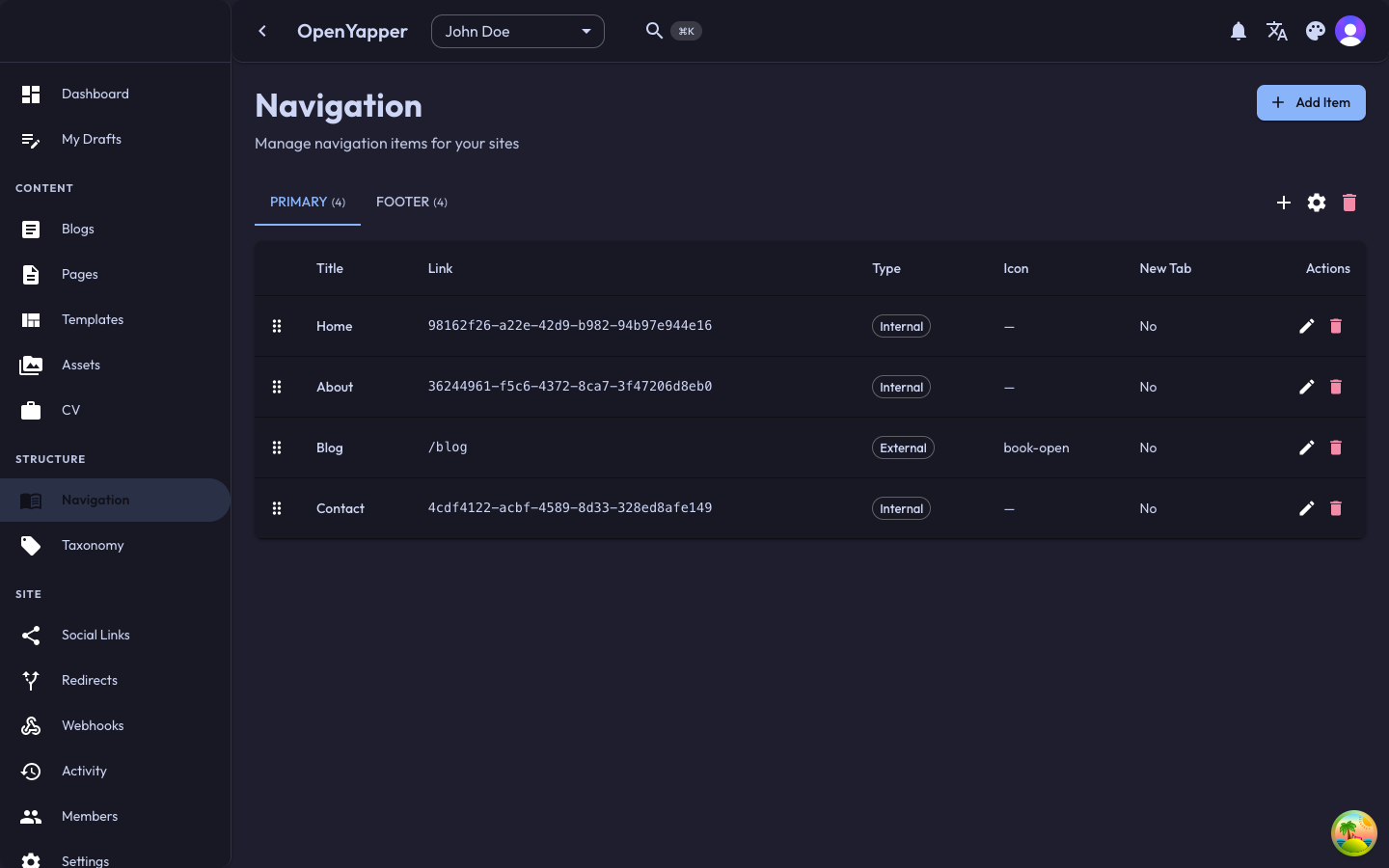
The navigation system in Forja lets you build and manage hierarchical menus for your site. Each site can have multiple named menus (e.g., primary navigation, footer links, sidebar menu), and each menu consists of a tree of navigation items.
Concepts
Navigation Menus
A navigation menu is a named container for navigation items. Common examples:
- Primary -- the main site navigation, usually displayed in the header.
- Footer -- links displayed in the site footer.
- Sidebar -- a secondary navigation for sidebars or sub-sections.
Navigation Items
A navigation item is a single link within a menu. Items can be nested to create a tree structure (parent-child relationships). Each item has:
- Title -- the display text for the link.
- URL -- the target URL (internal path or external URL).
- Parent -- an optional parent item, creating a hierarchical structure.
- Order -- the display position among siblings.
Accessing the Navigation Builder
Navigate to Navigation in the sidebar. The navigation page shows a tabbed interface with one tab per menu.
Managing Menus
Creating a Menu
- Click the New Menu button.
- Enter a name for the menu (e.g., "primary", "footer").
- Click Save. The new menu appears as a tab.
Editing a Menu
- Select the menu tab.
- Click the Edit icon on the menu tab (or an edit button).
- Update the menu name.
- Save.
Deleting a Menu
- Select the menu tab.
- Click the Delete button and confirm.
Deleting a menu removes all of its navigation items. This action cannot be undone.
Managing Navigation Items
Adding an Item
- Select the menu you want to add items to.
- Click Add Item.
- Fill in the item details:
- Title -- the display text for the link (required).
- URL -- the target URL or path (e.g.,
/about,https://example.com). - Parent -- select a parent item to nest this item under, or leave empty for a top-level item.
- Order -- the display position.
- Click Save.
Editing an Item
Click on an item in the tree view to open its editor. Modify the title, URL, parent, or order and save.
Deleting an Item
Click the delete icon on an item and confirm. If the item has children, you will be asked what to do with them (delete or promote to the parent level).
Drag-and-Drop Reordering
The navigation builder supports drag-and-drop for reordering items:
- Hover over an item to see the drag handle.
- Click and drag the item to a new position.
- Drop the item at the desired location:
- Drop between items to reorder at the same level.
- Drop onto another item to nest it as a child.
- The new order is saved automatically.
Drag-and-drop is the fastest way to reorganize your menu structure. You can move items between levels (top-level to nested or vice versa) by dragging them to the appropriate position.
Tree View
The navigation builder displays items in a tree view that visualizes the parent-child hierarchy:
Primary Menu
├── Home
├── About
│   ├── Team
│   └── History
├── Blog
├── Services
│   ├── Web Development
│   └── Consulting
└── Contact
Expand or collapse parent items to focus on specific parts of the tree.
Localizations
Navigation item titles can be localized:
- Click on an item to edit it.
- Switch to the desired locale using the locale selector.
- Enter the translated title for that locale.
- Save.
The URL is shared across all locales. Only the display title is localized.
Permissions
| Action | Required Role |
|---|---|
| View navigation | Read |
| Create/edit menus and items | Write, Admin, Master |
| Reorder items (drag-and-drop) | Write, Admin, Master |
| Delete menus and items | Write, Admin, Master |