Authentication
Forja uses Clerk for authentication in the admin dashboard. Clerk provides a secure, hosted identity layer with support for email/password, social logins, and multi-factor authentication.
Signing In
- Navigate to your dashboard URL (
/dashboard). - If you are not authenticated, you are automatically redirected to
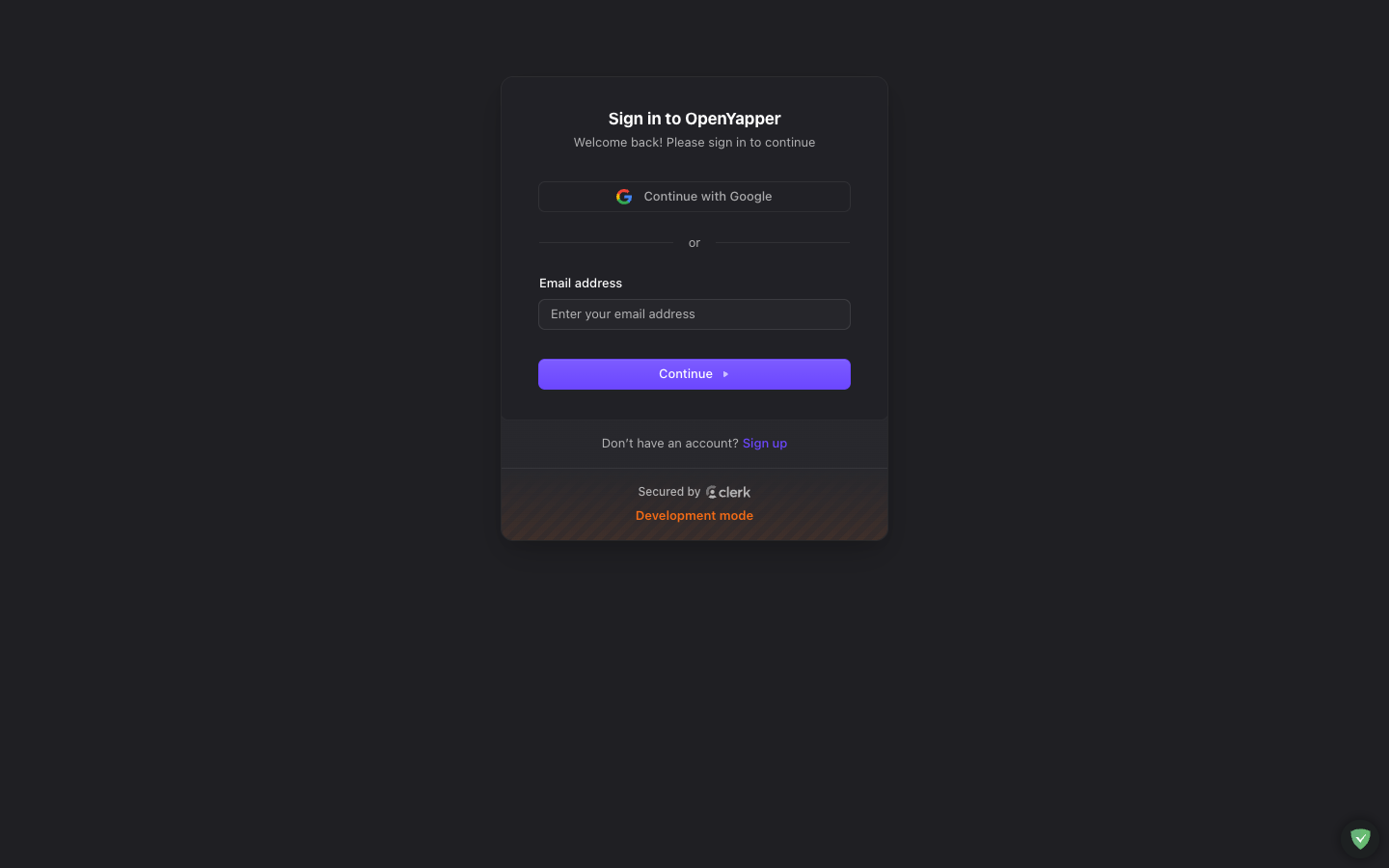
/dashboard/login. - On the login page, enter your email and password, or select a social login provider (Google, GitHub, etc., depending on your Clerk configuration).
- After successful authentication, you are redirected to the home dashboard.
Signing Up
If your Clerk instance has sign-up enabled:
- Click the Sign up link on the login page.
- Fill in your details (email, password, name).
- Verify your email address if required by your Clerk configuration.
- Once verified, you can sign in and access the dashboard.
New users do not automatically have access to any site. A site owner or admin must add them as a member before they can manage content. See Members for details.
Role-Based Access Control
Forja uses a four-tier permission model. Each user is assigned a role that determines what they can do:
| Role | Level | Capabilities |
|---|---|---|
| Master | Highest | Full system access. Can manage all sites, users, API keys, and system settings. Typically reserved for the platform owner. |
| Admin | High | Full access to assigned sites. Can manage members, settings, webhooks, and all content within their sites. |
| Write | Medium | Can create, edit, and delete content (blogs, pages, media, etc.) within assigned sites. Cannot manage members or site settings. |
| Read | Lowest | Read-only access. Can view content and settings but cannot make changes. Useful for reviewers or auditors. |
How Roles Are Assigned
- Roles are set per site membership. You might be an Admin on one site and a Write user on another.
- The site owner (the user who created the site) automatically has the Admin role.
- Roles can be changed by any user with Admin or Master level access on that site.
Clerk Role Mapping
When authenticating via a Clerk JWT, the role claim in the token is mapped to an Forja permission level. The mapping is configured in the backend and follows this flow:
- User signs in via Clerk.
- The React app sends the JWT in the
Authorization: Bearer <token>header. - The backend validates the JWT against Clerk's JWKS endpoint.
- The role claim from the token is mapped to one of the four permission levels.
- The user's Clerk
subclaim is converted to a deterministic UUID v5 for internal use.
Session Management
- Sessions are managed by Clerk. The session token is stored securely in the browser.
- Session duration and expiry are configured in your Clerk dashboard.
- When the session expires, the user is redirected to the login page.
Signing Out
Click your profile avatar in the top bar, then select Sign out. This clears your session and redirects you to the login page.
API Authentication
In addition to Clerk JWTs, Forja supports API key authentication via the X-API-Key header. API keys are used for programmatic access (frontends, CI/CD pipelines, scripts). See API Keys for details on creating and managing API keys.
Troubleshooting
| Issue | Solution |
|---|---|
| Stuck on login page | Clear your browser cookies and try again. Check that your Clerk publishable key is correctly set (VITE_CLERK_PUBLISHABLE_KEY). |
| "Unauthorized" errors after login | Your Clerk JWT may have expired. Sign out and sign back in. |
| Cannot access a site | Ask a site admin to add you as a member. See Members. |
| Social login not working | Verify that the social provider is enabled in your Clerk dashboard. |