API Keys
API keys provide programmatic access to the Forja API. They are used by frontend templates, CI/CD pipelines, scripts, and external integrations to authenticate requests without a Clerk user session.
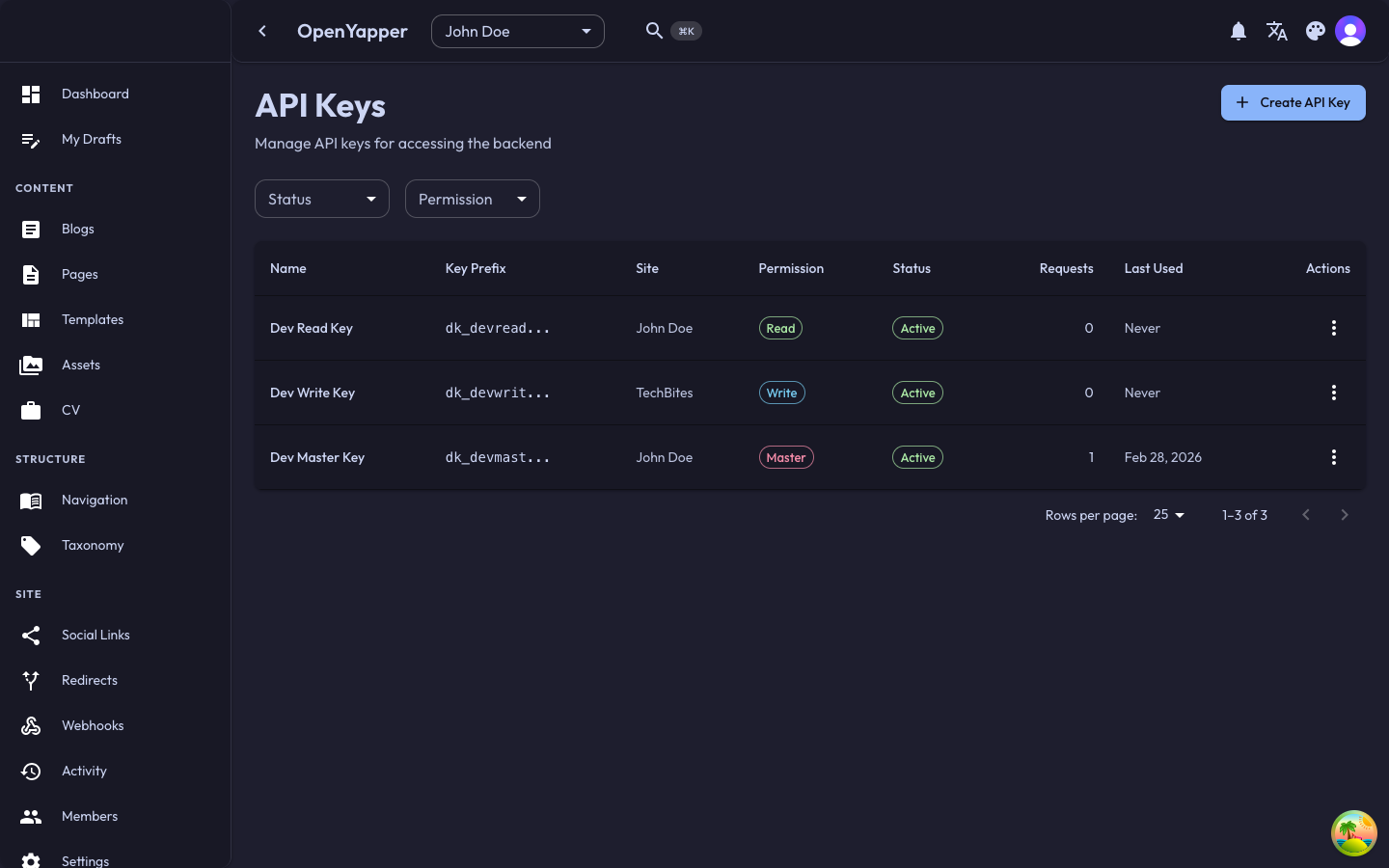
Accessing API Keys
Navigate to API Keys in the sidebar. The page shows all API keys for the currently selected site.
API Key Listing
| Column | Description |
|---|---|
| Name | A descriptive name for the key. |
| Key prefix | The first few characters of the key (the full key is never shown again after creation). |
| Permission | The permission level: Master, Admin, Write, or Read. |
| Status | Active or Blocked. |
| Created | When the key was created. |
| Last used | When the key was last used to make an API request. |
Creating an API Key
- Click the New API Key button.
- Fill in the details:
- Name -- a descriptive name that identifies the purpose of this key (e.g., "Astro blog frontend", "CI deploy script").
- Permission level -- select the appropriate permission level:
- Read -- can only read data. Best for public-facing frontends.
- Write -- can read and write data. Suitable for content editors or automation scripts.
- Admin -- full access to the site. Use for administrative integrations.
- Master -- system-wide access. Use sparingly and only for trusted system integrations.
- Click Create.
The full API key is displayed only once after creation. Copy it immediately and store it securely. You will not be able to see the full key again.
Using an API Key
Include the API key in the X-API-Key header of your HTTP requests:
curl -H "X-API-Key: your-api-key-here" \
  https://your-forja-instance.com/api/v1/sites
Permission Levels
API keys follow the same four-tier permission model as user roles:
| Level | What It Can Do |
|---|---|
| Read | Fetch content, media URLs, navigation, taxonomy, settings. |
| Write | Everything Read can do, plus create/update/delete content and media. |
| Admin | Everything Write can do, plus manage members, webhooks, redirects, and site settings. |
| Master | Full system access across all sites. |
Follow the principle of least privilege. Give each API key only the permissions it needs. A frontend that only displays content should use a Read key.
Blocking an API Key
If an API key is compromised or no longer needed but you want to keep the record:
- Click on the API key in the listing.
- Click Block. The key immediately stops working for API requests.
- A blocked key can be unblocked later if needed.
Revoking (Deleting) an API Key
To permanently remove an API key:
- Click on the API key in the listing.
- Click Delete and confirm.
The key is permanently removed and can no longer be used. If any integration was using this key, it will stop working immediately.
Best Practices
- Name keys descriptively -- use names like "Production frontend" or "Staging deploy" so you can identify their purpose later.
- Use Read-only keys for frontends -- your public-facing website only needs to read content.
- Rotate keys periodically -- create a new key, update your integrations, then delete the old key.
- Never commit keys to version control -- store them in environment variables or a secrets manager.
- Monitor last-used dates -- if a key has not been used in a long time, consider revoking it.
Permissions
| Action | Required Role |
|---|---|
| View API keys | Admin, Master |
| Create API keys | Admin, Master |
| Block/unblock API keys | Admin, Master |
| Delete API keys | Admin, Master |