Audit Log
The audit log provides a complete trail of all actions performed within your site. Every create, update, and delete operation is recorded, giving you full visibility into who changed what and when.
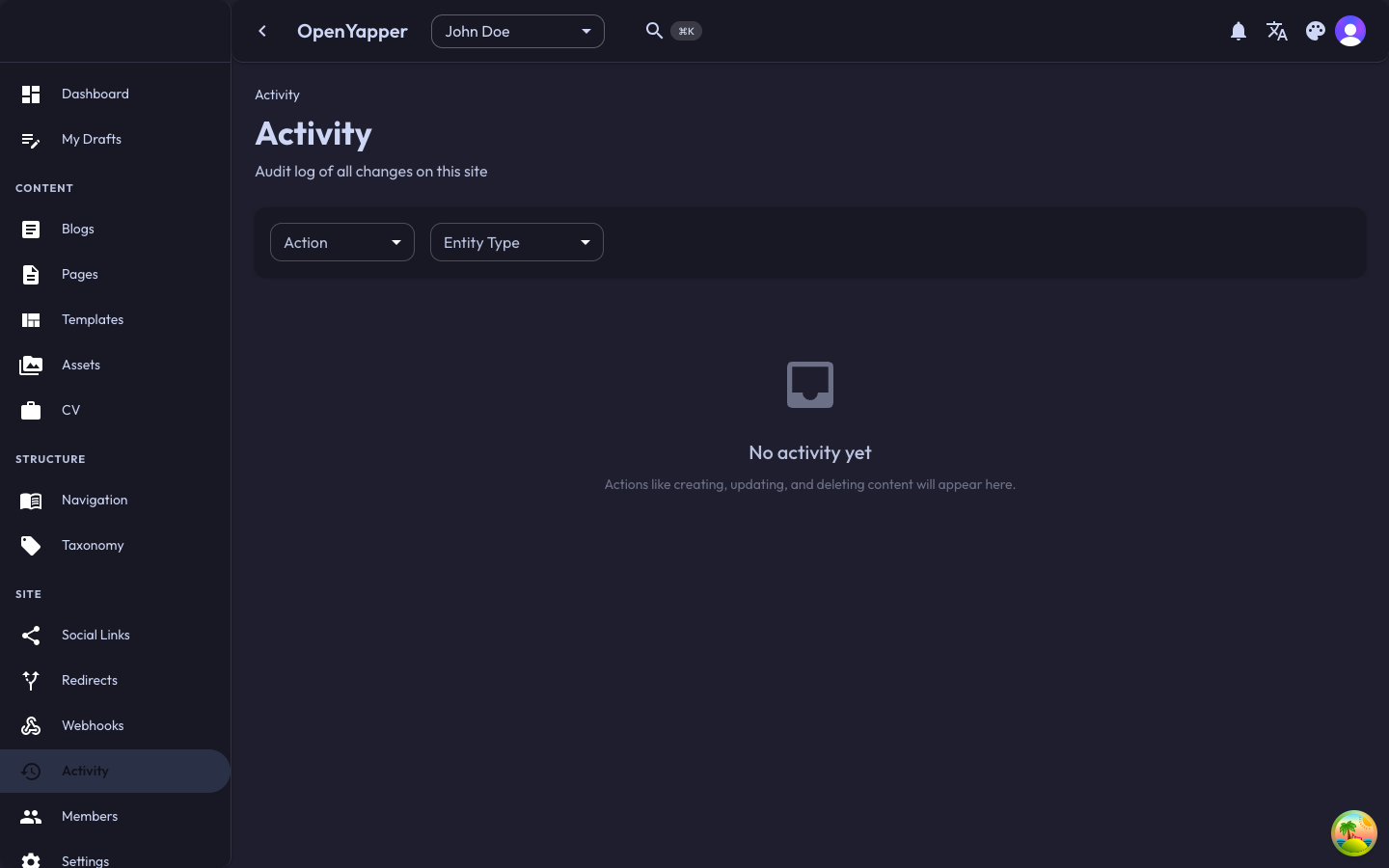
Accessing the Audit Log
Navigate to Activity (Audit Log) in the sidebar. The page shows the audit trail for the currently selected site.
Audit Log Listing
The audit log displays entries in reverse chronological order (newest first):
| Column | Description |
|---|---|
| Timestamp | When the action occurred. |
| User | Who performed the action. |
| Action | The type of action: Created, Updated, or Deleted. |
| Entity type | The type of resource affected (Blog, Page, Media, Navigation, etc.). |
| Entity | The name or title of the affected resource. |
| Details | A summary of what changed. |
Filtering the Audit Log
Use the filters at the top of the page to narrow down the audit trail:
- Date range -- show entries within a specific time period.
- User -- filter by the user who performed the action.
- Action type -- filter by Created, Updated, or Deleted.
- Entity type -- filter by resource type (Blog, Page, Media, etc.).
Viewing Change Details
Click on an audit log entry to see the full details of the change:
- Before -- the state of the resource before the change (for updates).
- After -- the state of the resource after the change (for creates and updates).
- Changed fields -- a highlighted diff showing which fields were modified.
This detail view lets you see exactly what changed in each update.
Entity History
To see the complete history of a specific resource:
- Navigate to the resource (e.g., a blog post or page).
- Look for a History or Activity tab in the detail view.
- The entity history shows all audit log entries related to that specific resource, in chronological order.
This gives you a timeline of every modification made to that resource.
Reverting Changes
For certain entity types, you can revert a change:
- Open the audit log entry detail view.
- Review the "Before" state.
- Click Revert to restore the resource to its state before the change.
Reverting a change creates a new audit log entry. The revert itself is tracked, so you can always see that a revert occurred and undo it if necessary.
Not all changes can be reverted. Deletions that cascade to related resources, or changes to system-level settings, may not support revert.
Retention
Audit log entries are retained indefinitely by default. The retention policy may be configured at the system level by the platform administrator.
Permissions
| Action | Required Role |
|---|---|
| View audit log | Admin, Master |
| View change details | Admin, Master |
| Revert changes | Admin, Master |