CV
The CV section is designed for portfolio sites. It lets you manage your professional experience, education, and skills in a structured format that your frontend template can render as a resume or CV page.
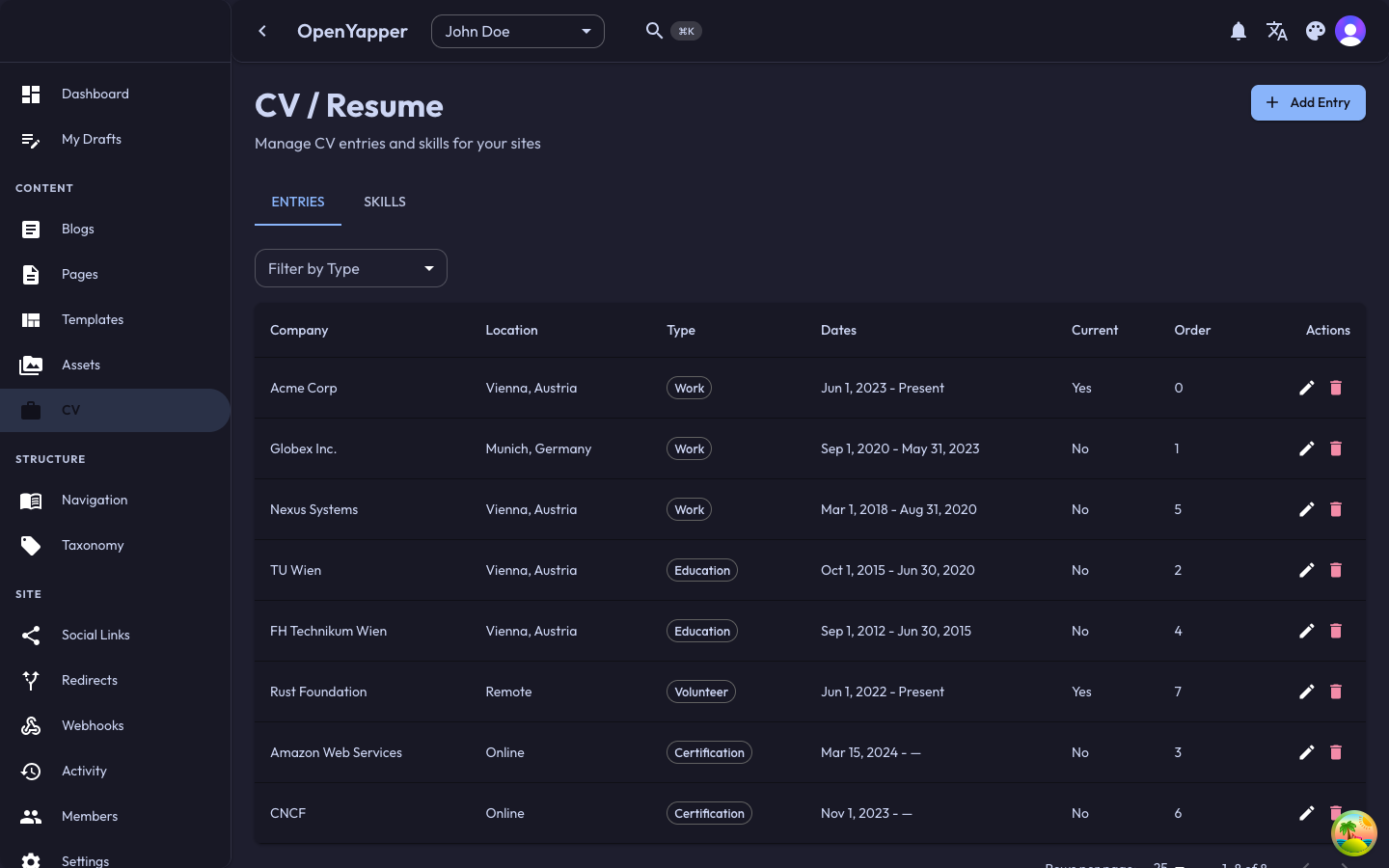
CV Entries
CV entries represent individual items on your resume, such as a job position, a degree, a certification, or a project.
Viewing CV Entries
Navigate to CV in the sidebar. The listing shows all CV entries for the currently selected site.
| Column | Description |
|---|---|
| Title | The entry title (e.g., "Senior Developer at Acme Corp"). |
| Type | The category of the entry (e.g., Experience, Education, Certification). |
| Date range | Start and end dates for the entry. |
| Order | The display order. |
Creating a CV Entry
- Click the New Entry button.
- Fill in the entry details:
- Title -- the headline for this entry (e.g., "Full-Stack Engineer at TechCo").
- Type -- select the entry type (Experience, Education, etc.).
- Organization -- the company, school, or institution name.
- Description -- a detailed description of your role, achievements, or coursework. Supports Markdown.
- Start date -- when this position or program started.
- End date -- when it ended (leave blank for current/ongoing).
- Location -- where this was based (optional).
- Order -- the display position relative to other entries of the same type.
- Click Save.
Editing a CV Entry
Click on an entry in the listing to open the detail view. Modify any field and click Save.
Deleting a CV Entry
Click Delete on an entry and confirm. The entry is permanently removed.
Skills
Skills are separate from CV entries and represent your competencies (e.g., "Rust", "TypeScript", "PostgreSQL").
Managing Skills
- In the CV section, switch to the Skills tab (if available) or scroll to the skills area.
- Add a new skill by entering the skill name and an optional proficiency level.
- Reorder skills to control their display order.
- Delete skills by clicking the remove icon.
Localizations
CV entries support multilingual content:
- Open the CV entry detail view.
- Switch to the desired locale using the locale selector.
- Enter the translated title, description, and organization name.
- Save.
Permissions
| Action | Required Role |
|---|---|
| View CV entries | Read |
| Create/edit CV entries | Write, Admin, Master |
| Delete CV entries | Write, Admin, Master |