Media
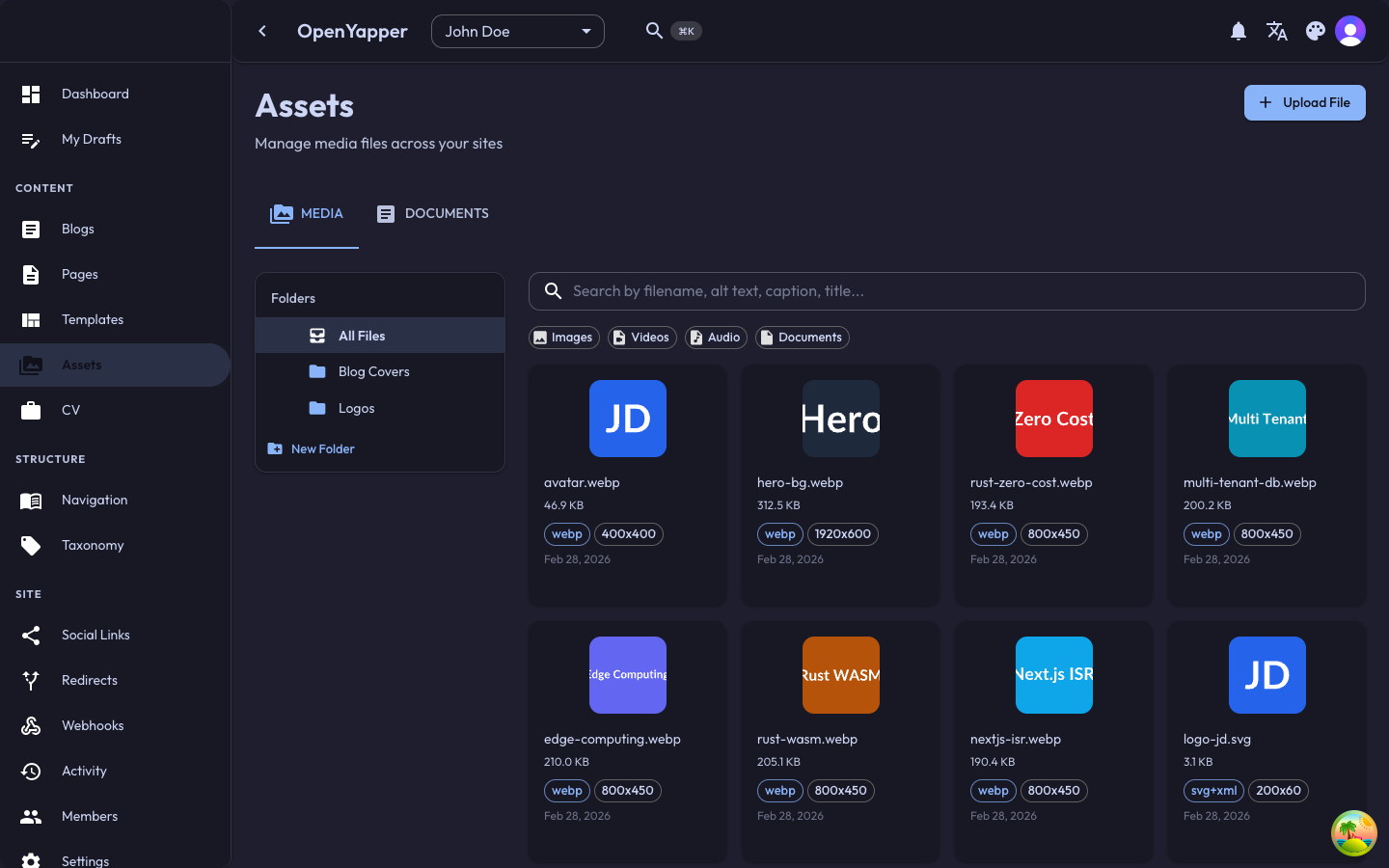
The media library is where you upload, organize, and manage all files (images, documents, videos) for your site. Media assets uploaded here can be embedded in blog posts, pages, and other content types.
Accessing the Media Library
Navigate to Media in the sidebar. The media library shows all uploaded files for the currently selected site.
Media Grid and List Views
The media library supports two viewing modes:
- Grid view -- displays media files as thumbnail cards. Best for browsing images.
- List view -- displays media files in a table format with columns for name, type, size, and upload date.
Toggle between views using the view switcher in the top-right corner of the media library.
Uploading Files
Single Upload
- Click the Upload button in the media library.
- Select a file from your computer using the file picker.
- The file is uploaded immediately and appears in the library.
Drag and Drop
You can also drag files directly from your file manager and drop them onto the media library area. Multiple files can be dropped at once.
Supported File Types
Forja accepts common web file formats:
| Category | Formats |
|---|---|
| Images | JPEG, PNG, GIF, WebP, SVG |
| Documents | |
| Other | Depends on backend configuration |
Maximum file size is determined by the backend configuration. Contact your system administrator if you encounter upload size limits.
Image Thumbnails
For image files, the media library automatically displays:
- A thumbnail preview in grid view.
- The image dimensions (width x height).
- The file size.
Searching and Filtering
- Search -- type in the search field to filter files by name.
- Type filter -- filter by file type (images, documents, etc.).
- Sort -- sort by name, upload date, or file size.
Managing Files
Viewing File Details
Click on any file in the media library to open its detail panel. The detail panel shows:
- File name -- the original file name.
- URL -- the public URL for this file. Click to copy.
- Dimensions -- width and height (images only).
- File size -- the file size in a human-readable format.
- Uploaded -- the upload date and time.
- MIME type -- the file's content type.
Copying the URL
In the file detail panel, click the Copy URL button to copy the file's public URL to your clipboard. Use this URL to reference the file in external applications.
Deleting Files
- Select one or more files in the media library.
- Click the Delete button and confirm.
Deleting a media file removes it from storage permanently. If the file is referenced in blog posts or pages, those references will break (display as missing images or broken links).
Using Media in Content
When editing a blog post or page, you can insert media files from the library:
- In the Markdown editor, click the Insert Image button in the toolbar.
- The media library picker opens, showing all available files.
- Select the desired file.
- The image is inserted into your content as a Markdown image reference.
Storage Backends
Forja supports two storage backends for media files:
- Local storage -- files are stored on the server's filesystem.
- S3-compatible storage -- files are stored in an S3 bucket (AWS S3, MinIO, DigitalOcean Spaces, etc.).
The storage backend is configured at the system level. See the S3 Storage deployment guide for details.
Permissions
| Action | Required Role |
|---|---|
| View media | Read |
| Upload files | Write, Admin, Master |
| Delete files | Write, Admin, Master |