Blogs
The blog management section is where you create, edit, and publish blog posts for your site. Forja provides a full-featured block editor with rich text formatting, localizations, scheduling, and more.
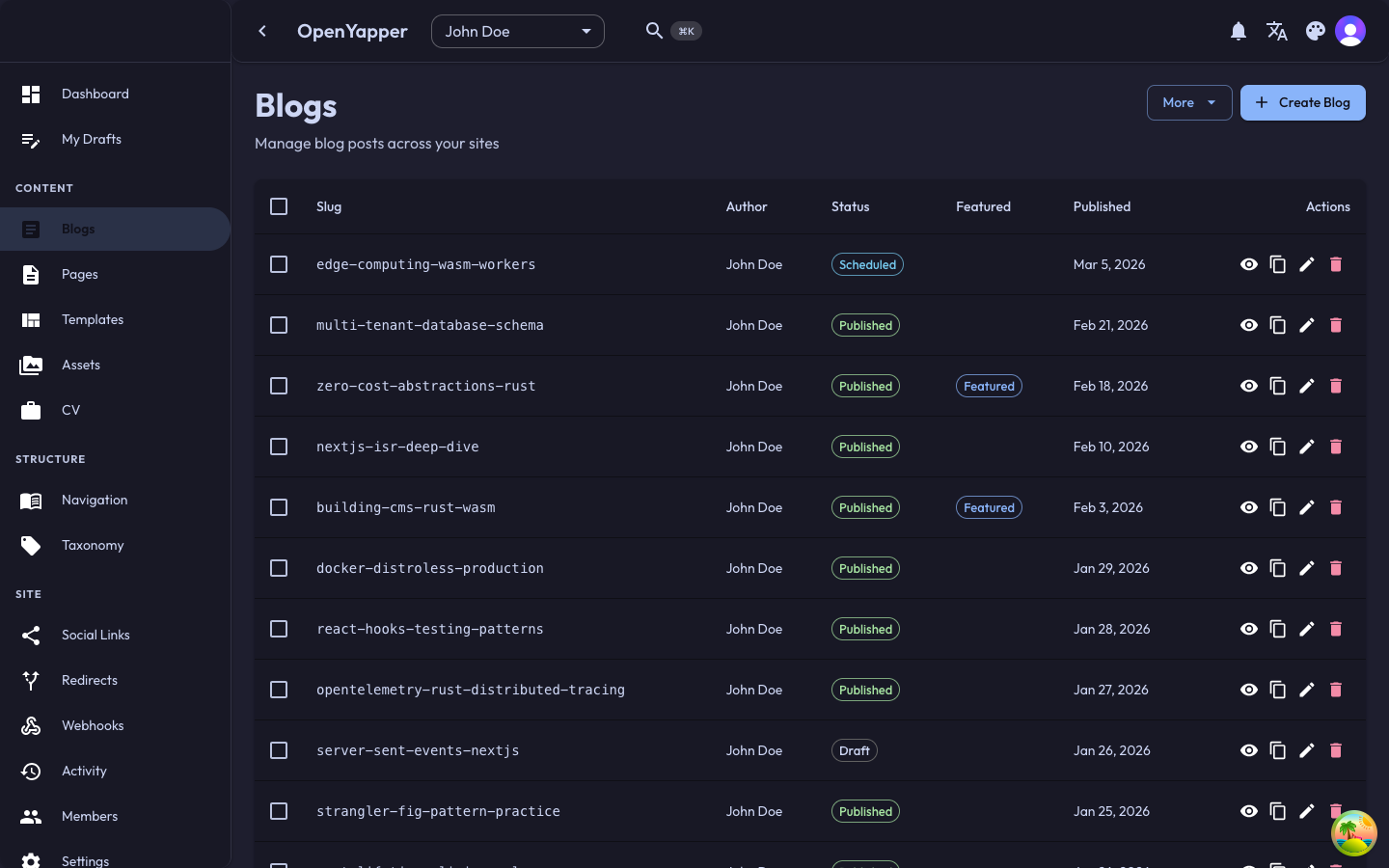
Blog Listing
Navigate to Blogs in the sidebar. The listing page shows all blog posts for the currently selected site.
List View Columns
| Column | Description |
|---|---|
| Title | The post title in the current locale. |
| Status | Draft, Published, Scheduled, or In Review. |
| Author | The user who created the post. |
| Created | When the post was first created. |
| Updated | When the post was last modified. |
| Featured | Whether the post is marked as featured. |
Filtering and Searching
- Search -- type in the search field to filter posts by title.
- Status filter -- filter by Draft, Published, Scheduled, or In Review.
- Author filter -- show posts by a specific author.
Bulk Actions
Select multiple posts using the checkboxes, then use the bulk actions menu:
- Publish -- publish all selected drafts.
- Unpublish -- revert selected posts to draft status.
- Delete -- permanently delete selected posts.
Creating a Blog Post
- Click the New Post button on the blog listing page.
- Fill in the post details:
- Title -- the headline of your post (required).
- Slug -- the URL-friendly identifier. Auto-generated from the title, but editable.
- Excerpt -- a short summary displayed in listings and RSS feeds.
- Content -- the post body, written in the block editor (see Block Editor below).
- Featured image -- select an image from the media library or upload a new one.
- Tags and categories -- assign taxonomy terms to organize your content. See Taxonomy.
- Click Save as Draft to save without publishing, or Publish to make it live immediately.
If the AI module is enabled and configured, you can also create posts using AI Assist -- describe your idea, review an AI-generated outline, and generate a full draft. See AI Content Assist for details.
Block Editor
The blog editor uses a Tiptap-based block editor with rich formatting capabilities. Content is stored as Markdown for portability.
Toolbar
The toolbar provides quick access to formatting options:
- Text formatting -- Bold, Italic, Underline, Strikethrough
- Headings -- Heading 1, 2, 3
- Block structure -- Blockquote, Bullet List, Ordered List, Task List, Horizontal Rule
- Insert -- Link, Image (via media picker), Code Block, Table
- History -- Undo / Redo
Slash Commands
Type / anywhere in the editor to open the command palette. Filter by typing after the slash:
| Command | Inserts |
|---|---|
/paragraph | Plain text block |
/heading1, /heading2, /heading3 | Heading at the specified level |
/bulletList | Unordered list |
/orderedList | Numbered list |
/taskList | Checklist with toggleable items |
/blockquote | Quoted text |
/codeBlock | Syntax-highlighted code block |
/horizontalRule | Visual divider |
/image | Image from the media library |
/table | 3x3 table with header row |
Supported Block Types
- Paragraphs and headings (H1 -- H3)
- Lists -- bullet, ordered, and task lists with nesting
- Blockquotes
- Code blocks -- with syntax highlighting for common languages (via lowlight)
- Tables -- resizable columns and header rows
- Images -- inserted via the media picker dialog (no manual URL entry needed)
- Horizontal rules
Editor Sidebar
The editor has a collapsible right sidebar with tabs for managing post metadata:
- General -- status, author, scheduling, reading time, cover/header images
- SEO -- meta title, meta description, excerpt (with optional AI generation)
- Relations -- categories and attached documents
Storage Format
Content is stored as Markdown via the tiptap-markdown extension. This means your content remains portable and readable even outside the editor.
Editing a Blog Post
- Click on a post in the listing to open the detail view.
- Modify any field as needed.
- Click Save to update the post.
Changes to published posts take effect immediately. If you want to make changes without affecting the live version, consider cloning the post (see Cloning).
Localizations
Forja supports multilingual content. To add translations for a blog post:
- Open the blog post detail view.
- Select a locale from the locale switcher (shown near the top of the editor).
- Enter the translated title, excerpt, and content for that locale.
- Save the post.
Each locale has its own title, excerpt, and content body. The slug, featured image, and taxonomy assignments are shared across locales.
Add locales to your site first via Locales before creating translations.
Scheduling
You can schedule posts to be published or unpublished at a future date and time:
- In the post editor, find the Scheduling section.
- Set a Publish date to schedule automatic publication.
- Optionally set an Unpublish date to automatically revert the post to draft status.
- Save the post. Its status changes to Scheduled.
The backend processes scheduled content and updates publication status at the configured intervals.
Featured Posts
Mark a post as Featured to highlight it on your site. Featured posts can be queried separately via the API, allowing your frontend template to display them in a hero section or featured carousel.
Toggle the featured flag in the post editor.
Review Workflow
For teams, Forja supports a basic review workflow:
- A writer creates a post and saves it as Draft.
- When ready for review, the writer changes the status to In Review.
- A reviewer or admin reviews the post and either:
- Publishes it (status changes to Published).
- Requests changes (status stays In Review, and feedback can be communicated via the team's preferred channel).
Cloning
To create a copy of an existing blog post:
- Open the post you want to clone.
- Click the Clone button (or select it from the actions menu).
- A new draft is created with the same content, title (prefixed with "Copy of"), and taxonomy assignments.
- Edit the cloned post as needed and save.
Cloning is useful for creating similar posts or for testing changes without affecting the original.
Deleting a Blog Post
- Open the post or select it from the listing.
- Click Delete and confirm the action.
Deleted posts cannot be recovered. If the post was published, it will immediately become unavailable on your site.
Permissions
| Action | Required Role |
|---|---|
| View posts | Read |
| Create/edit posts | Write, Admin, Master |
| Publish/unpublish | Write, Admin, Master |
| Delete posts | Write, Admin, Master |
| Bulk actions | Write, Admin, Master |