Settings
The settings page lets you configure site-specific options that control how your site behaves and appears. Settings are scoped to the currently selected site.
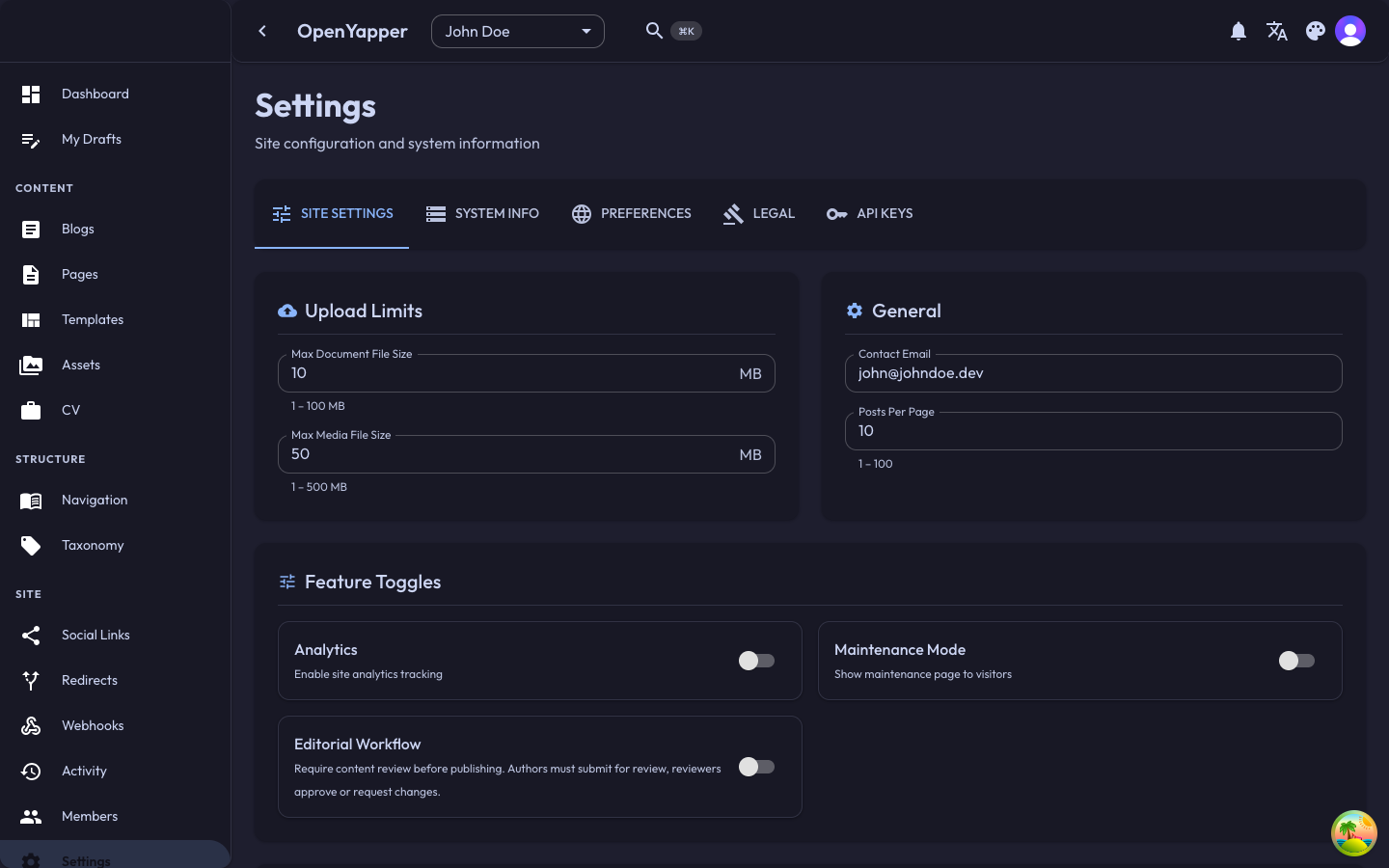
Accessing Settings
Navigate to Settings in the sidebar. The settings page is organized into logical sections.
General Settings
Core information about your site:
| Setting | Description |
|---|---|
| Site name | The display name of your site. Used in the admin dashboard and can be used by your frontend template. |
| Site description | A brief description of your site. Useful for SEO meta tags. |
| Domain | The primary domain for your site. |
| Default locale | The default language for content when no locale is specified. |
| Timezone | The timezone used for content scheduling and timestamps. |
SEO Settings
Search engine optimization settings:
| Setting | Description |
|---|---|
| Meta title template | A template for page titles (e.g., `%s |
| Meta description | The default meta description for pages without one. |
| Social image | The default Open Graph image used when sharing links to your site. |
Content Settings
Options that control content behavior:
| Setting | Description |
|---|---|
| Blog posts per page | The number of blog posts to display per page in listings. |
| Enable comments | Whether comments are enabled on blog posts (if supported by your frontend). |
| Default post status | Whether new posts start as Draft or Published by default. |
RSS Settings
Configuration for the auto-generated RSS feed:
| Setting | Description |
|---|---|
| RSS enabled | Whether to generate an RSS feed for this site. |
| RSS title | The title of the RSS feed. |
| RSS description | The description of the RSS feed. |
| RSS items count | How many items to include in the feed. |
AI Settings
AI settings have their own dedicated page. Navigate to AI Settings in the sidebar to configure your AI provider. This section is only visible when the AI module is enabled for your site.
For full details on provider setup, model selection, system prompts, and capabilities, see the AI Content Assist guide.
Saving Settings
After making changes to any setting, click Save at the bottom of the page. Settings take effect immediately.
Resetting to Defaults
If available, click the Reset to defaults option to revert all settings to their default values. Confirm the action when prompted.
Permissions
| Action | Required Role |
|---|---|
| View settings | Read |
| Modify settings | Admin, Master |
| Reset settings | Admin, Master |