Dashboard
The home dashboard is the first page you see after signing in. It provides an at-a-glance overview of your site's content and activity, along with a setup checklist for new sites.
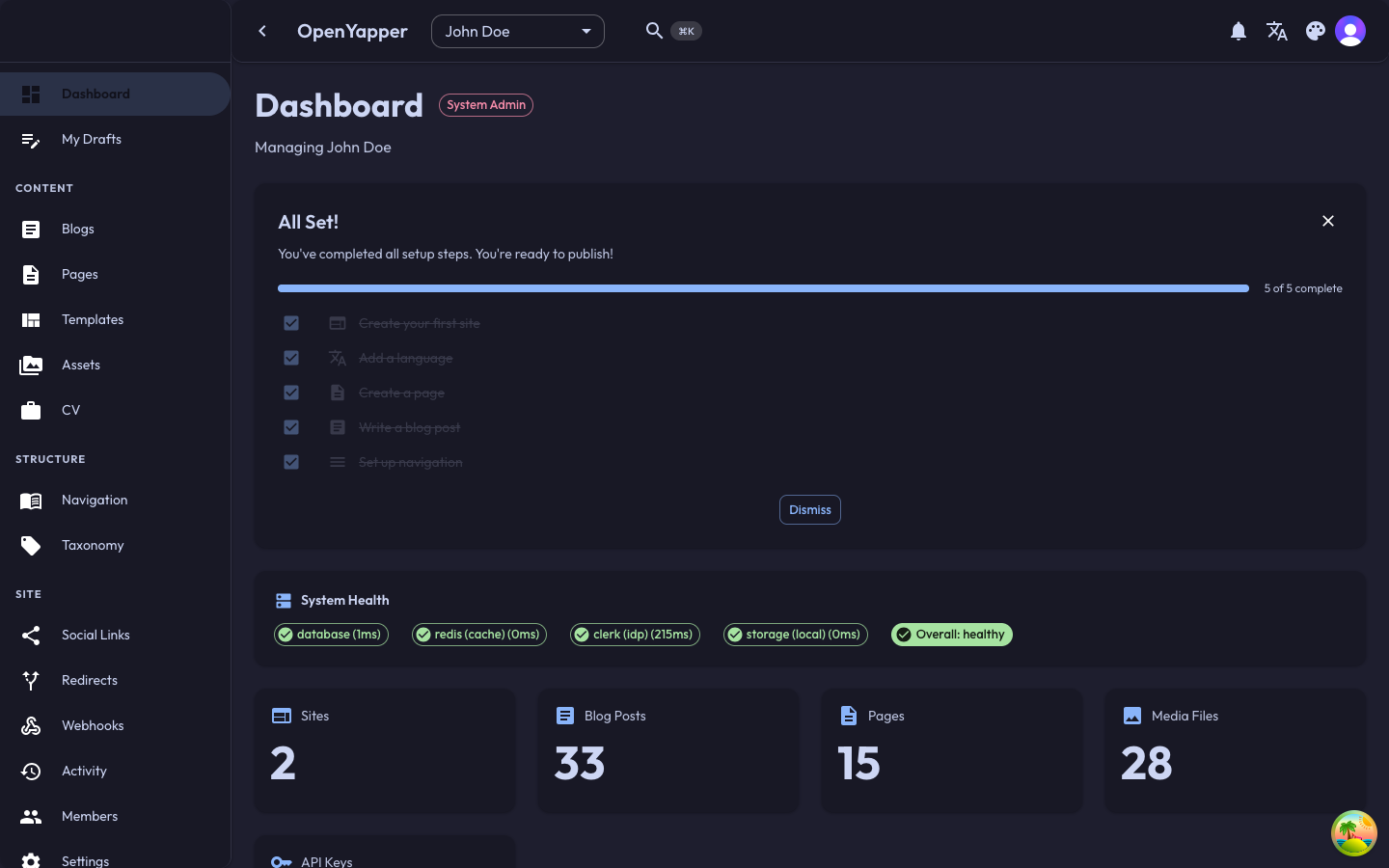
Accessing the Dashboard
Click Dashboard in the sidebar or navigate to /dashboard. The dashboard always reflects data for the currently selected site in the site selector.
Setup Checklist
When you create a new site, the dashboard displays a setup checklist to help you get started. The checklist tracks essential setup steps:
- Create your first blog post -- guides you to the blog editor.
- Add a page -- prompts you to create a static page.
- Upload media -- directs you to the media library to upload your first image.
- Configure navigation -- links to the navigation menu builder.
- Add locales -- reminds you to add supported languages for your content.
- Set up social links -- links to the social links configuration.
Each item shows a checkmark once completed. The checklist disappears once all steps are done, or you can dismiss it manually.
Statistics Cards
The dashboard displays summary statistics for the selected site:
| Stat | Description |
|---|---|
| Blog posts | Total number of blog posts, with counts for published, draft, and scheduled. |
| Pages | Total number of pages and their publication status. |
| Media files | Total number of uploaded media assets. |
| Documents | Total document count. |
Each card is clickable and navigates to the corresponding listing page.
Recent Activity
The recent activity section shows the latest actions performed on the site:
- Content created, updated, or deleted.
- Media uploads.
- Settings changes.
- Member additions or removals.
Each entry shows the action type, the affected resource, the user who performed it, and a relative timestamp (e.g., "2 hours ago"). Click any entry to navigate to the affected resource.
Quick Actions
The dashboard may include quick-action buttons for common tasks:
- New blog post -- opens the blog editor with a blank post.
- Upload media -- opens the media upload dialog.
- View site -- opens your site's public URL in a new tab.
My Drafts
If you have unpublished drafts, the dashboard highlights them so you can quickly resume editing. Click any draft to open it in the editor.