Legal
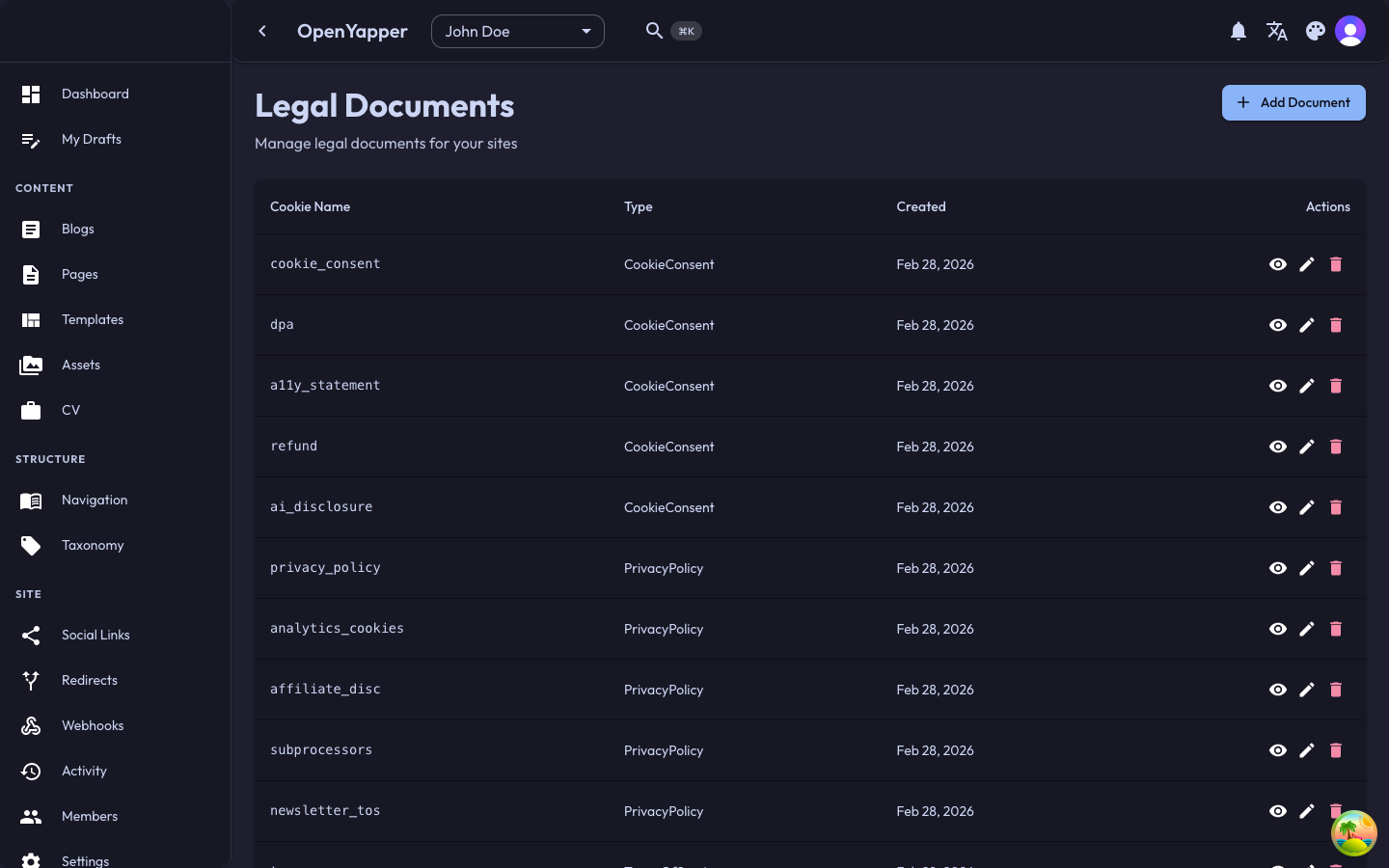
The legal section helps you manage legal documents for your site, such as privacy policies, terms of service, cookie consent notices, and imprint pages. Legal content is organized into groups and items.
Structure
Legal content in Forja follows a two-level hierarchy:
- Legal groups -- top-level categories that organize your legal documents (e.g., "Privacy Policy", "Terms of Service", "Cookie Consent").
- Legal items -- individual sections or clauses within a group. Each item has its own title and content.
This structure allows you to break long legal documents into manageable, independently editable sections.
Legal Listing
Navigate to Legal in the sidebar. The listing shows all legal groups for the currently selected site.
| Column | Description |
|---|---|
| Title | The legal group title (e.g., "Privacy Policy"). |
| Items count | Number of items (sections) in the group. |
| Status | Draft or Published. |
| Updated | When the group was last modified. |
Creating a Legal Group
- Click the New Legal Group button.
- Enter the group details:
- Title -- the name of the legal document (e.g., "Terms of Service").
- Slug -- auto-generated from the title, editable.
- Status -- Draft or Published.
- Click Save.
Managing Legal Items
After creating a legal group, you can add items (sections) to it:
Adding an Item
- Open the legal group detail page.
- Click Add Item.
- Fill in the item details:
- Title -- the section heading (e.g., "Data Collection", "Limitation of Liability").
- Content -- the section body in Markdown.
- Order -- the display position within the group.
- Click Save.
Editing an Item
Click on an item to open its editor. Modify the title, content, or order and save.
Reordering Items
Drag and drop items to rearrange them within a legal group, or update the order number manually.
Deleting an Item
Click the delete icon on an item and confirm. The item is permanently removed from the group.
Cookie Consent
If your site requires a cookie consent banner, you can manage the consent text through the legal section:
- Create a legal group named "Cookie Consent" (or similar).
- Add items for each consent category (e.g., "Essential Cookies", "Analytics Cookies", "Marketing Cookies").
- Your frontend template can fetch these items via the API and render them in a cookie consent dialog.
Localizations
Legal content supports multilingual translations:
- Open a legal group or item.
- Switch to the desired locale using the locale selector.
- Enter the translated title and content.
- Save.
Legal documents often have locale-specific requirements. Make sure to provide accurate translations for each locale your site supports.
Editing a Legal Group
Open the legal group from the listing. Modify the title, slug, or status and save.
Deleting a Legal Group
Deleting a legal group removes the group and all of its items. This action cannot be undone.
- Open the legal group.
- Click Delete and confirm.
Permissions
| Action | Required Role |
|---|---|
| View legal content | Read |
| Create/edit legal groups and items | Write, Admin, Master |
| Delete legal groups and items | Write, Admin, Master |