Taxonomy
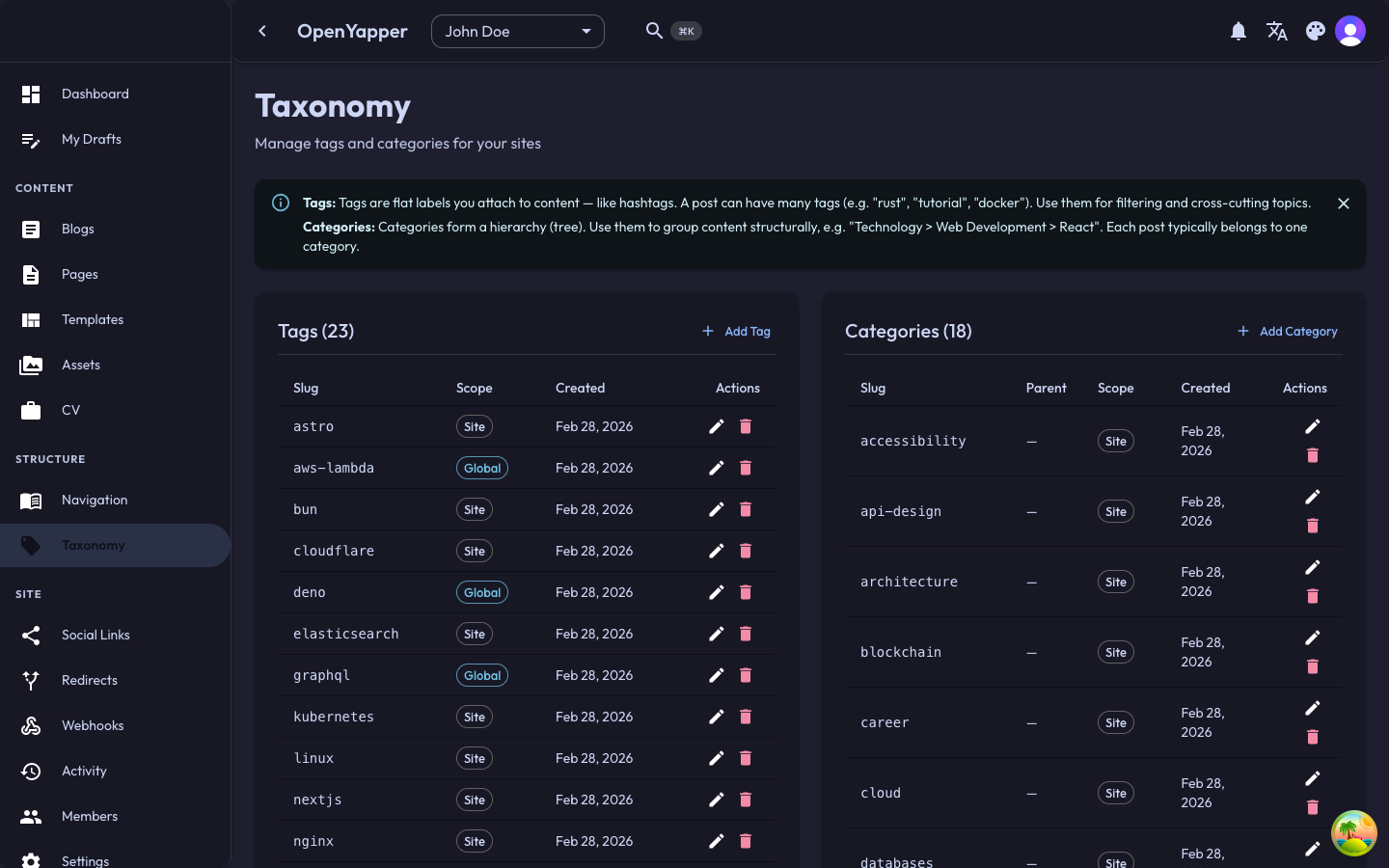
Taxonomy in Forja refers to the classification system for your content. It consists of tags and categories that help organize blog posts and other content into logical groups.
Tags vs. Categories
| Feature | Tags | Categories |
|---|---|---|
| Purpose | Descriptive keywords for fine-grained classification. | Broad groupings for high-level organization. |
| Hierarchy | Flat (no parent-child relationships). | Can be hierarchical (nested categories). |
| Usage | A post can have many tags. | A post typically belongs to one or few categories. |
| Examples | "react", "typescript", "tutorial" | "Web Development", "DevOps", "Career" |
Accessing Taxonomy
Navigate to Taxonomy in the sidebar. The taxonomy page shows both tags and categories for the currently selected site.
Managing Tags
Viewing Tags
The tags section displays all tags with:
| Column | Description |
|---|---|
| Name | The tag name. |
| Slug | The URL-friendly identifier. |
| Usage count | Number of content items using this tag. |
Creating a Tag
- Click the New Tag button.
- Enter the tag details:
- Name -- the display name (e.g., "JavaScript").
- Slug -- auto-generated from the name, editable.
- Click Save.
Editing a Tag
Click on a tag to open its editor. Modify the name or slug and save.
Deleting a Tag
Click the delete icon on a tag and confirm. The tag is removed from all content items that used it.
Managing Categories
Viewing Categories
The categories section displays all categories with:
| Column | Description |
|---|---|
| Name | The category name. |
| Slug | The URL-friendly identifier. |
| Parent | The parent category (if nested). |
| Usage count | Number of content items in this category. |
Creating a Category
- Click the New Category button.
- Enter the category details:
- Name -- the display name (e.g., "Web Development").
- Slug -- auto-generated from the name, editable.
- Parent -- optionally select a parent category to create a hierarchy.
- Click Save.
Editing a Category
Click on a category to open its editor. Modify the name, slug, or parent category and save.
Deleting a Category
Click the delete icon on a category and confirm.
Deleting a category does not delete the content assigned to it. The content items will simply no longer be associated with that category.
Assigning Taxonomy to Content
Tags and categories are assigned to content (primarily blog posts) from the content editor:
- Open a blog post in the editor.
- Find the Tags and Categories fields.
- Select existing tags/categories from the dropdown, or type to search.
- Save the post.
Localizations
Taxonomy terms support multilingual names:
- Open a tag or category.
- Switch to the desired locale using the locale selector.
- Enter the translated name for that locale.
- Save.
The slug remains the same across locales.
Permissions
| Action | Required Role |
|---|---|
| View taxonomy | Read |
| Create/edit tags and categories | Write, Admin, Master |
| Delete tags and categories | Admin, Master |