Content Templates
Content templates let you define reusable content structures that speed up content creation. Instead of starting from a blank page every time, you can create templates with pre-filled fields, placeholder text, and predefined layouts.
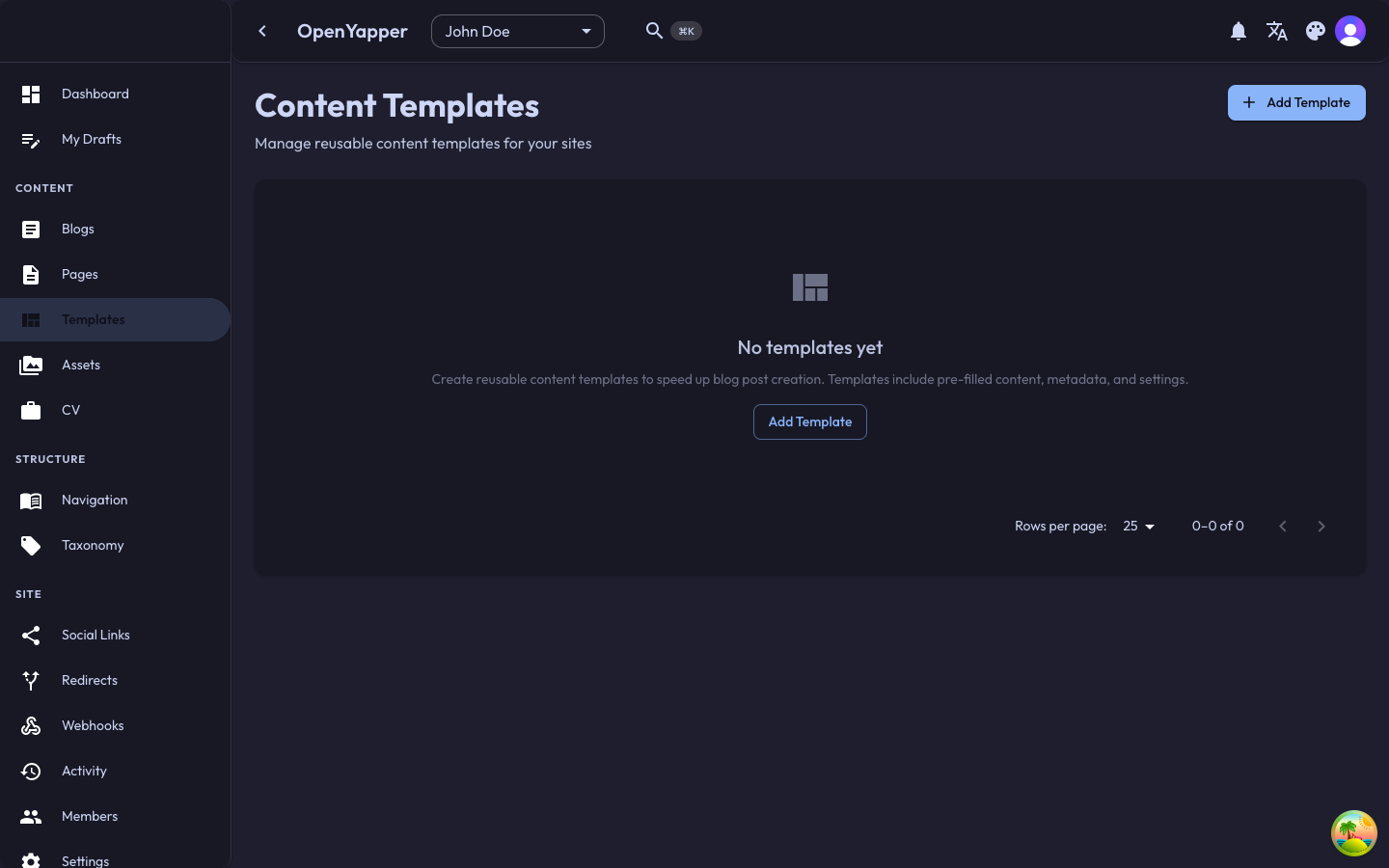
Accessing Content Templates
Navigate to Content Templates in the sidebar. The page shows all content templates for the currently selected site.
Template Listing
| Column | Description |
|---|---|
| Name | The template name. |
| Type | The content type this template applies to (Blog, Page, etc.). |
| Description | A brief description of the template's purpose. |
| Created | When the template was created. |
| Updated | When the template was last modified. |
Creating a Content Template
- Click the New Template button.
- Fill in the template details:
- Name -- a descriptive name for the template (e.g., "Product Review", "How-To Guide", "Changelog Entry").
- Description -- explain when and how this template should be used.
- Type -- select the content type this template applies to (Blog or Page).
- Template content -- define the template body in Markdown. Use placeholder text or instructions that the content creator will replace.
- Click Save.
Example Template
A "Product Review" blog template might look like:
## Overview

[Provide a brief summary of the product.]

## Key Features

- Feature 1
- Feature 2
- Feature 3

## Pros and Cons

### Pros
- [List advantages]

### Cons
- [List disadvantages]

## Verdict

[Your overall assessment and recommendation.]

## Rating

[X/10]
Editing a Content Template
Click on a template in the listing to open the editor. Modify the name, description, or template content and save.
Using a Content Template
When creating a new blog post or page:
- Click New Post or New Page.
- If templates are available, a template picker appears (or a "Use template" option is shown).
- Select the template you want to use.
- The editor is pre-filled with the template content.
- Replace the placeholder text with your actual content and save.
Templates only pre-fill the content field. You still need to set the title, slug, tags, and other metadata manually.
Deleting a Content Template
Click the delete icon on a template and confirm. Deleting a template does not affect content that was previously created from it.
Best Practices
- Create templates for recurring content -- if you publish weekly product reviews or how-to guides, a template ensures consistency.
- Include instructions in placeholders -- use
[brackets]to indicate what the content creator should fill in. - Keep templates focused -- one template per content pattern. Avoid overly generic templates.
- Update templates as your style evolves -- modify templates when your content format changes. Existing content is not affected.
Permissions
| Action | Required Role |
|---|---|
| View templates | Read |
| Create/edit templates | Admin, Master |
| Delete templates | Admin, Master |
| Use templates when creating content | Write, Admin, Master |